Daily to DO Pages for KDP: Optimizing Undated Planner Templates
Creating a successful low-content book requires more than just uploading a file; it demands a strategic approach to interior design and cost management. Daily to DO Pages for KDP offer a versatile solution for publishers looking to enter the productivity niche without the seasonal limitations of dated planners. By utilizing undated daily TO DO pages in PDF, PPTX, and Keynote formats, creators can build an evergreen product that remains relevant year-round. However, simply having access to a template does not guarantee profitability or quality. Many publishers overlook critical structural elements and printing specifications that directly impact their bottom line and customer satisfaction.
This specific 6x9 inch template is engineered with precise KDP requirements in mind, featuring a 120-page count and a calculated printing cost of $2.29. Understanding how to leverage this pre-structured layout while avoiding common customization errors is essential for producing a professional-grade planner that stands out in a saturated market.
The Strategic Value of Undated Daily Layouts
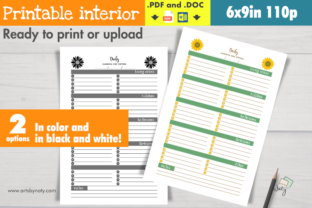
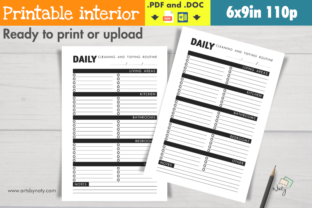
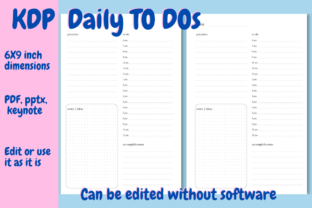
Publishers often gravitate toward dated planners because they seem easier to market, but this creates an expiration date on your inventory. Daily to DO Pages for KDP solve this problem through flexibility. The included layout features spaces for users to write the date manually, alongside sections for priorities, daily activities, dotted note boxes, and accomplishments. This structure appeals to a broad demographic, from students and freelancers to busy parents and entrepreneurs who do not adhere to a strict Monday-to-Friday schedule.
The primary advantage here is inventory longevity. An undated planner purchased in November is just as valuable as one purchased in March. When evaluating this template, recognize that the "undated" feature is not a lack of content, but a deliberate design choice that extends the product's shelf life indefinitely. This reduces the risk of unsold stock and allows you to run advertising campaigns consistently without seasonal pauses.
Common Mistakes in Template Customization
While the provided PowerPoint, Keynote, and PDF files are tested for the KDP preview tool, user error during customization remains the leading cause of rejection and poor reviews. A frequent misunderstanding involves the duplication process. The instructions note that you can right-click and duplicate pages to increase volume or delete them to lower costs. However, blindly adding pages without recalculating the spine width or checking the total page count against KDP’s minimum requirements can lead to formatting failures.
Another significant oversight occurs when users alter the margins after duplicating pages. The original 6x9 inch no-bleed interior has specific safe zones. If you add text or decorative elements to the duplicated daily TO DO pages that encroach on the gutter margin, the book may be flagged during upload, or worse, printed with unreadable content. Always verify that any new content added to the priorities or notes sections stays within the established safe area. The template includes 110 daily pages for a reason; this count balances utility with the $2.29 printing cost. Drastically increasing this number pushes the book into a higher pricing tier, which may make your royalty margin unsustainable at competitive price points.
Neglecting Front Matter Functionality
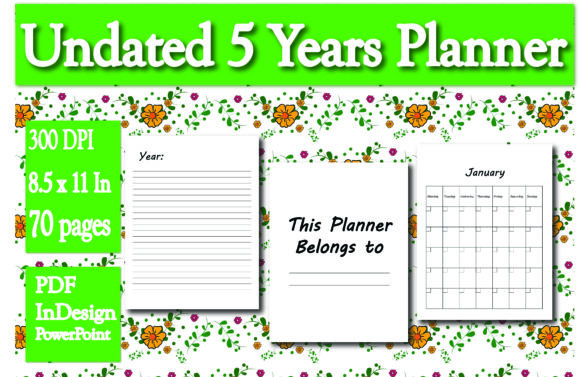
Many creators treat front matter as filler, but in a functional planner, these pages drive usability. This template includes three contact pages with six contacts per page and two blank calendar pages for two years. A common mistake is deleting these pages to save on printing costs or assuming customers will ignore them. In reality, these elements add perceived value. The blank calendars allow users to map out their year regardless of when they purchase the book, reinforcing the undated utility.
Furthermore, the single copyright page and title page are formatted specifically for KDP compliance. Removing or significantly altering the copyright page without understanding Amazon’s metadata requirements can sometimes cause confusion regarding ownership or edition tracking. Keep the structural integrity of the front matter intact unless you have a specific, value-adding reason to modify it.
Evaluating File Formats and Editing Workflows
The availability of PDF, PPTX, and Keynote files provides accessibility, but choosing the wrong format for your skill level leads to frustration. PowerPoint is often the most accessible for beginners, yet it is also where most alignment issues occur. When editing the PPTX file, ensure that your slide size matches the 6x9 inch trim exactly. Some versions of PowerPoint default to standard presentation ratios, which will distort your planner layout.
For those using Keynote or exporting final PDFs, pay close attention to font embedding. The template uses standard fonts to ensure compatibility, but if you introduce custom typography for branding on the title page or notes sections, you must embed those fonts. Failure to do so results in KDP substituting a default font, which ruins the aesthetic consistency of your daily TO DO pages. Always download and review the final PDF proof locally before uploading to KDP, even if the source file passed the initial preview test.
Cost Management and Pricing Strategy
The stated printing cost of $2.29 for this 120-page black and white interior is a baseline, not a guarantee. This cost assumes standard white paper and the exact page count provided. A practical warning for new publishers: changing paper type or inadvertently adding blank pages during the editing process will alter this figure. Before setting your retail price, always use the current KDP Printing Cost Calculator with your final uploaded PDF.
If you decide to delete pages to reduce costs, consider the user experience trade-off. Reducing the 110 daily pages to 80 might save pennies on printing, but it reduces the planner’s lifespan from roughly four months to under three. Customers often calculate value based on cost-per-day of use. Maintaining the higher page count usually supports a better value proposition and justifies a slightly higher list price, ultimately protecting your royalty rate better than aggressive cost-cutting.
Quality Assurance Beyond the Preview Tool
Passing the KDP automated preview is the minimum standard, not the finish line. Automated tools check for technical bleed and margin violations, but they cannot assess usability. Before publishing, print a physical copy or order a proof. Check the dotted box for notes on the lower left half of the daily pages. Is there enough space for actual handwriting? Are the lines too faint or too dark? Verify that the "accomplishments" section on the lower right is positioned logically relative to the daily activities.
Additionally, test the three notes pages at the end. In digital previews, these often look identical to daily pages. Ensure they are distinctly blank or lined as intended to provide differentiation. Physical verification catches tactile issues that digital proofs miss, such as paper opacity or binding tightness in a 6x9 format. Taking this extra step prevents negative reviews related to usability, which are difficult to overcome once published.
Making Informed Decisions for Long-Term Success
Daily to DO Pages for KDP represent a solid foundation for a publishing business, but success depends on meticulous execution. Avoid the temptation to rush through customization. Respect the no-bleed constraints, understand the financial implications of page count changes, and prioritize the functional needs of the end-user over minor aesthetic preferences. By treating this template as a professional manufacturing blueprint rather than a simple digital download, you position your planner as a high-quality tool that delivers genuine value to adults seeking organization.